 Sealio Docs
Plans and billing
Your firm's plan, what it includes, and how payment works.
Free trial (In place)
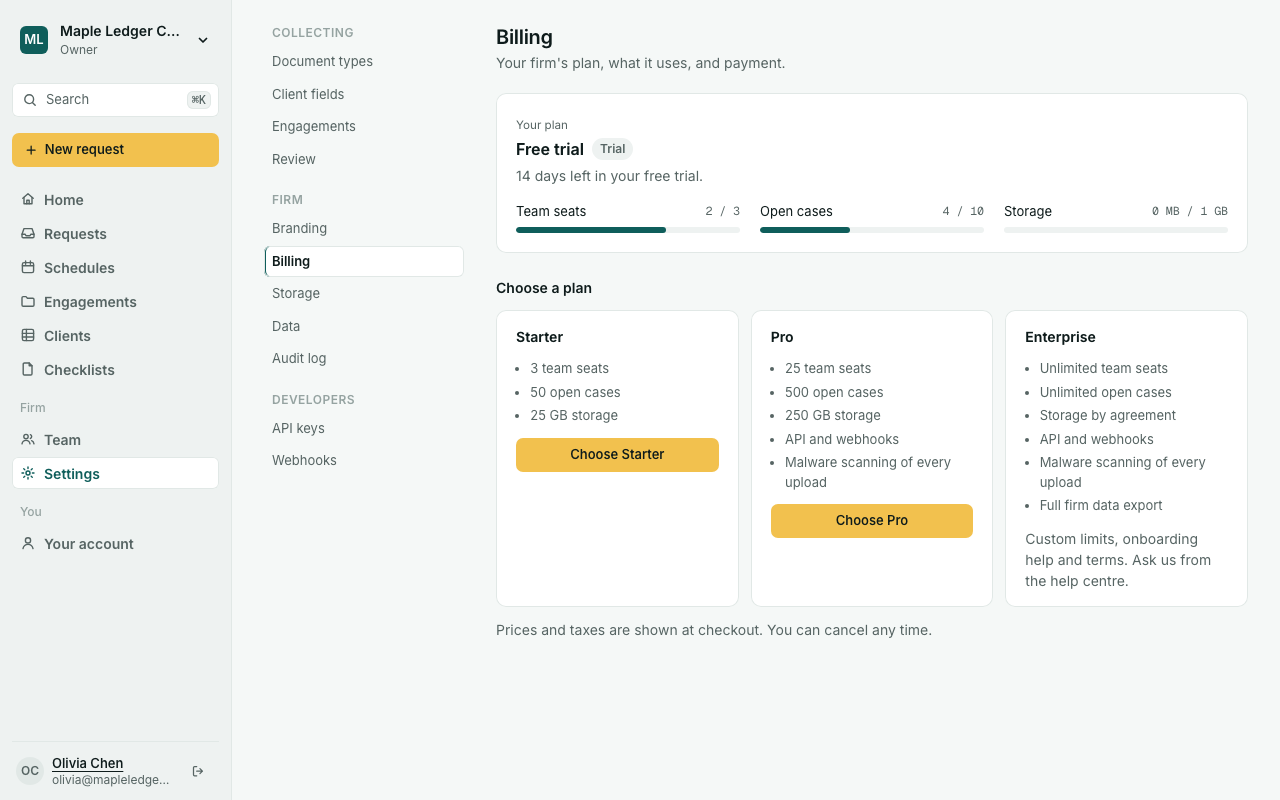
A new firm starts with a 14-day free trial: up to 3 team seats, 10 open cases and 1 GB of storage, with every automation event and API action (two live automations) and malware scanning, so you can try everything before choosing a plan. Settings → Billing shows the days left and what your firm uses.
Plans (In place)
| Plan | Team seats | Open cases | Storage | Malware scanning | Full firm export |
|---|---|---|---|---|---|
| Starter | 3 | 50 | 25 GB | No | No |
| Pro | 25 | 500 | 250 GB | Yes | No |
| Enterprise | Custom | Custom | Custom | Yes | Yes |
Automation: the API and webhooks (In place)
Every plan can connect Sealio to other tools with the API and webhooks. Higher plans do more:
| Free trial | Starter | Pro | Enterprise | |
|---|---|---|---|---|
| Live automations (webhook endpoints) | 2 | 3 | 25 | Custom |
| Events you can react to | All | Core: client created, request sent, request completed, document uploaded | All | All |
| Actions through the API | All | Clients, checklists, requests and file details | All, including reviewing and downloading documents, team members and the audit log | All |
| API requests per minute | 60 | 60 | 300 | Custom |
The trial has everything at a small size so you can build an automation and see it work. If you move to a plan that includes less, your automations stay in place: events your plan doesn't cover simply aren't sent until you upgrade.
Planned: a Sealio app in Zapier's directory. Until it is listed, Zapier's Webhooks and API request steps work with the API today.
These are the standard terms; Sealio can agree different limits or features with your firm, and Settings → Billing then says your firm has agreed terms.
Each plan's price is shown on the pricing page and in Settings → Billing; taxes are added at checkout. To talk about Enterprise, ask us from this help centre.
Monthly or yearly (In place)
Where a yearly price is offered, Settings → Billing has a Monthly / Yearly switch above the plans. A paying firm can move between them: moving to yearly is charged then, and moving to monthly leaves a credit for the next invoice.
Who can buy a plan (In place)
Only the firm's Owner, signed in with a confirmed email address, from Settings → Billing. If you choose a plan on the pricing page before you have an account, Sealio takes you through sign-up and creating your firm first, then to Billing with that plan selected. Every purchase is recorded in the audit log.
Paying (In place)
The firm's Owner chooses a plan in Settings → Billing. Payment happens on the provider's secure page: Stripe for Sealio Canada, Razorpay (cards and UPI AutoPay) for Sealio India. Sealio never sees your card details.
- Changing plan: once you pay, the plan buttons read Upgrade to or Move to, and your existing subscription changes (you're never charged for two). An upgrade applies straight away and the difference for the rest of the period is charged at once. Moving to a smaller plan gives a credit on your next invoice (Canada) or applies at the end of the paid month (India), and is possible once your team, open cases and storage fit the smaller plan. In India, subscriptions paid with UPI AutoPay can't be changed: cancel, then choose the new plan when the period ends.
- Manage payment and invoices (Canada) opens Stripe's page to change the card, download invoices or cancel.
- Cancel at the end of the period (India) stops renewal; the plan stays active until the paid period ends.
When a limit is reached
Sealio tells you what's full and how to continue: for example, inviting a fourth person on Starter asks the Owner to upgrade. Nothing is deleted.
Storage (In place)
Settings → Storage (Owners and Admins) shows how much your firm stores against its plan, uploads per month for the last year, which clients and document types take the most space, and the largest files. ZIP downloads and exports are temporary and don't count.
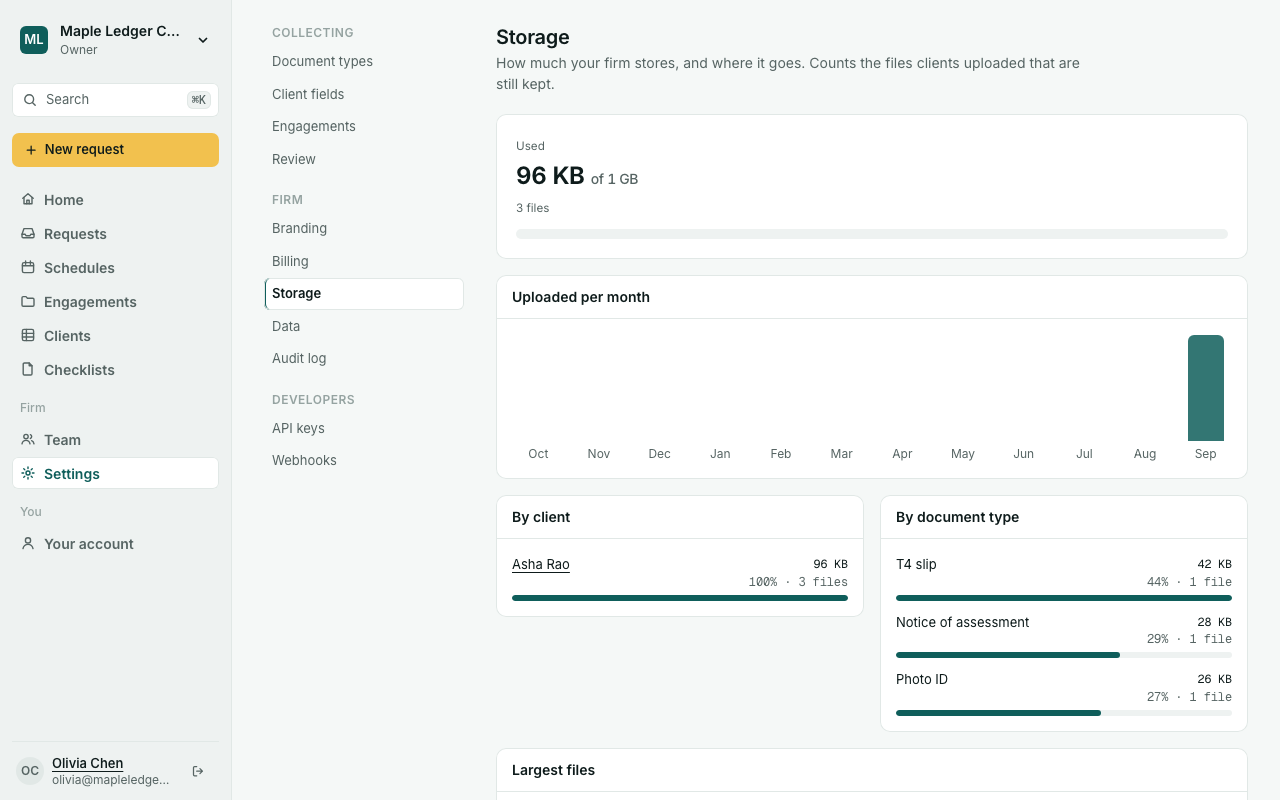
Owners and Admins get an email when your firm reaches 80% of its storage, and another when it's full. When storage is full, clients can't upload until space is freed or the plan is upgraded; they see a short message asking them to let you know. To free space automatically, set a retention period in Settings → Review.
Malware scanning (In place)
On plans with malware scanning (Pro, Enterprise and the trial), every file a client uploads is scanned before your team can open it; the file shows Checking for a moment. On other plans files are available straight away.
Full firm export (In place)
Downloading everything your firm keeps in Sealio (Settings → Data) is part of Enterprise, once every 30 days. On other plans, contact Sealio support if you need a copy of your data.
If a payment fails
- Owners and Admins see a notice at the top of every page. Update the card from Settings → Billing.
- After 10 days the firm becomes read-only: your team can see everything and clients can still upload to open requests, but nobody can create or send new work.
- After 30 days the firm is suspended until the balance is settled.
When a trial ends without a plan, the firm also becomes read-only until the Owner chooses one.
Planned: annual billing and per-seat pricing if chosen.