 Sealio Docs
Clients
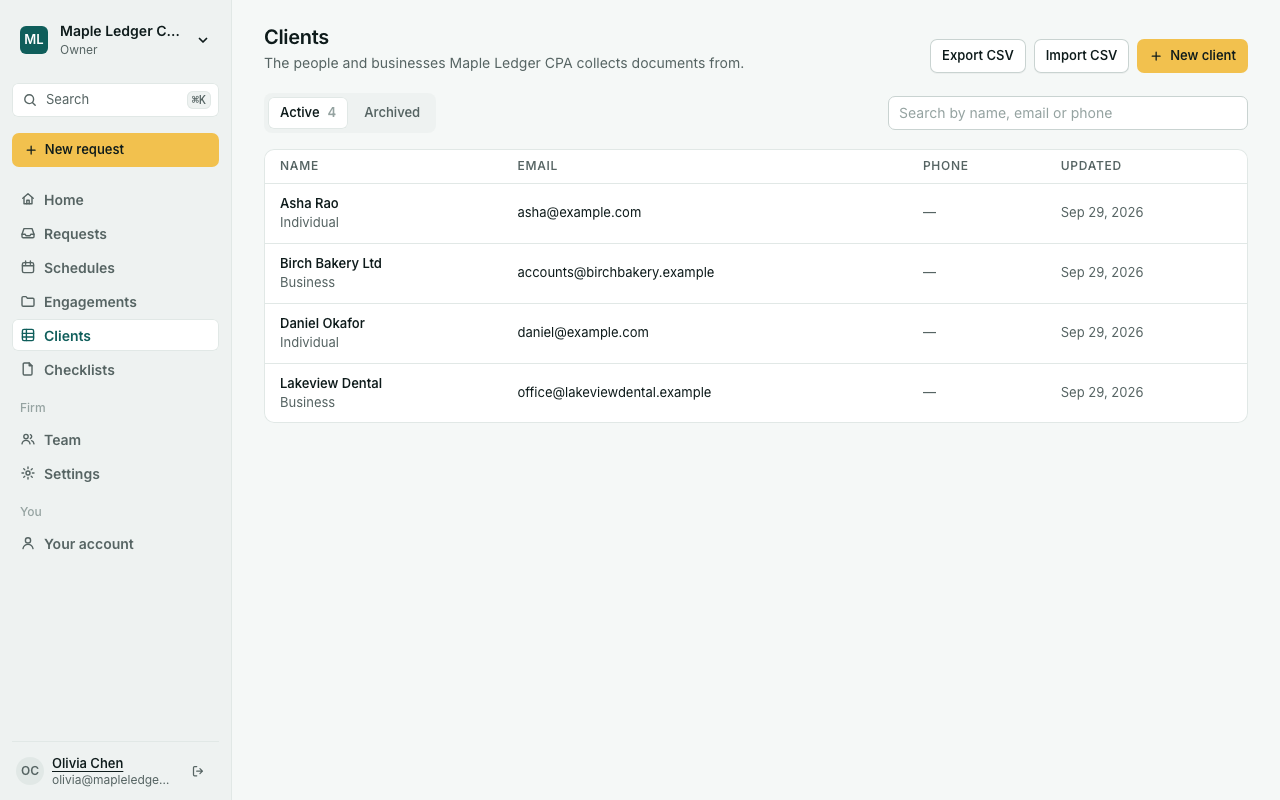
Add the people and businesses you collect documents from.
A client is someone your firm collects documents from: a person (a tax filer, an applicant) or a business with one or more contacts. Clients belong to your firm only; no other firm can see them.
Add a client
- In your workspace, open Clients and choose New client (or use New client while creating a request). The form opens in a panel beside the page.
- Pick Individual or Business. You can't change this later.
- Fill in the name, plus email and phone if you have them.
- Individuals can have a date of birth.
- Businesses can have a legal name, a business number (BN in Canada, GSTIN in India) and a list of contacts, one of them primary.
- On Sealio Canada, choose the client's preferred language (English or French). It's used for the emails and upload page they'll see.
If another active client already has the same email or phone number, Sealio shows you who it is before creating anything. Choose Create anyway if they really are different people.
Find, edit and archive
- Search by name, email or phone from the Clients page.
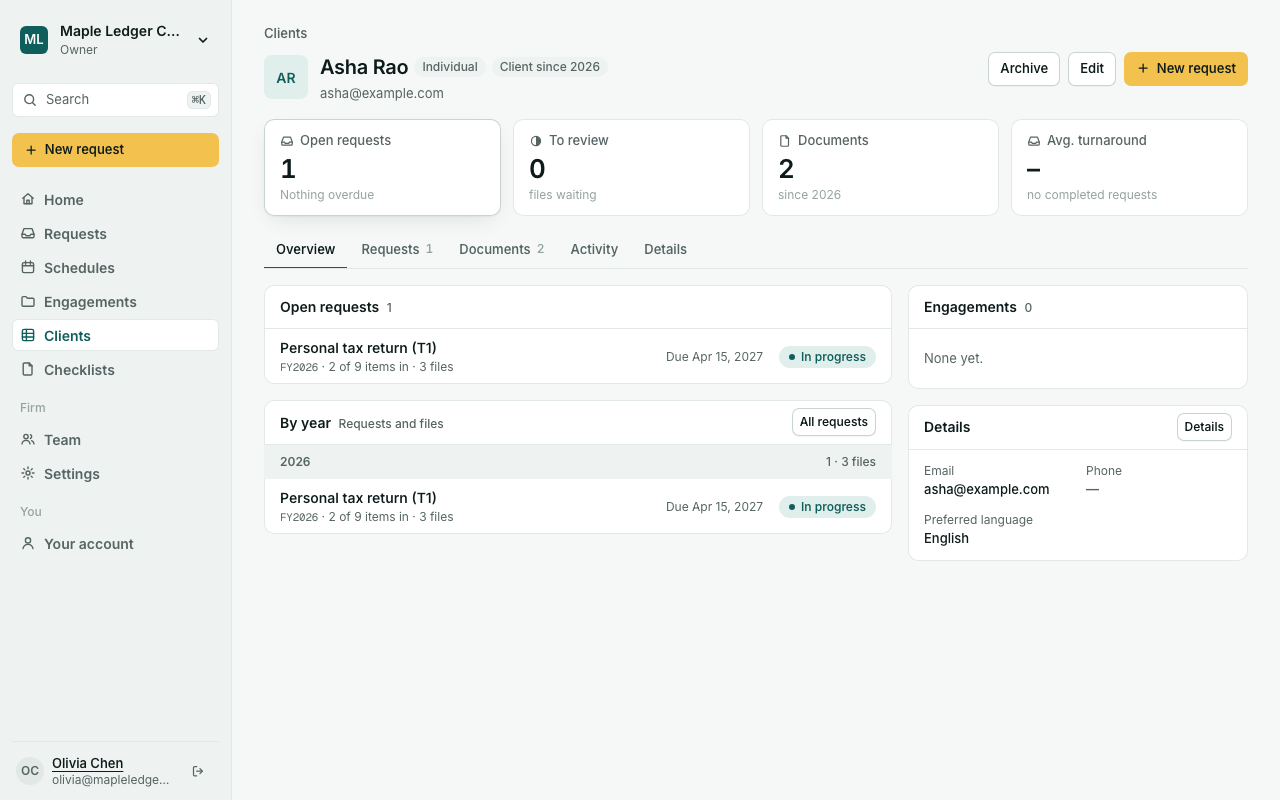
- Open a client to see their details and contacts, and choose Edit to change them.
- Archive hides a client from the active list without deleting anything; Restore brings them back.
Every change is recorded in your firm's audit trail, including which fields changed and what they changed from.
The client page
Click a client to open their page: open requests, files waiting for review, every document they've sent by type and year, and their details. See A client's documents and search.
Emails that bounce (In place). If emails to a client's address bounce, or the client marks one as spam, Sealio stops emailing that address and shows a warning on the client's page. Request links and reminders won't reach them until you fix the address: check it with the client and edit it. If they marked Sealio as spam by mistake, they can contact Sealio support to receive emails again.
Who can do what
Owners, Admins and Case managers can add, edit and archive clients. Reviewers and Viewers can see them.
Your own fields (In place)
Owners and Admins can add fields your firm needs on every client in Settings → Client fields: text, number, date or a pick-list, for all clients or only individuals or businesses. Mark a field sensitive (for example SIN last 4 or PAN) and it shows as •••• to anyone who isn't an Owner or Admin. The audit log records that a sensitive value changed, not the value itself.
Import and export (In place)
- Export CSV on the Clients page downloads every client, including archived ones and your own fields.
- Import CSV takes a spreadsheet with one client per row (up to 1,000 at a time). Sealio matches the columns from your headers; check them, then Check rows to see which rows need fixing or look like clients you already have. Nothing is saved until you choose Import.
A client's Activity tab shows everything that happened with them.