 Sealio Docs
Create your account and firm
Sign up, confirm your email, and set up your firm's workspace.
Early access
Sign-up is open to early-access firms. The steps below are in place; workspaces (clients, checklists and requests) arrive next.
Create your account
Go to sealio.ca (Canada) or sealio.in (India) and choose Start free trial. Enter your name, your work email and a password of at least 12 characters. Sealio checks new passwords against known data breaches and asks you to pick another if yours has appeared in one.
Confirm your email with a code
Right after you sign up, Sealio emails you a 6-digit code and asks for it on the same screen. Enter it (or paste it) to confirm your address; you're signed in straight away.
- The code works once and expires after 10 minutes.
- If it doesn't arrive, check your spam folder, then choose Send a new code (available after a minute).
- You can't sign in until your email is confirmed. If you try, Sealio sends a fresh code and asks for it.
Set up your firm
Enter your firm's name and choose its web address, for example tremblay-associes.sealio.ca. Your clients see this address in their upload links, and it can't be changed later. Then pick the kind of work you do, which sets starter checklists and the words Sealio uses.
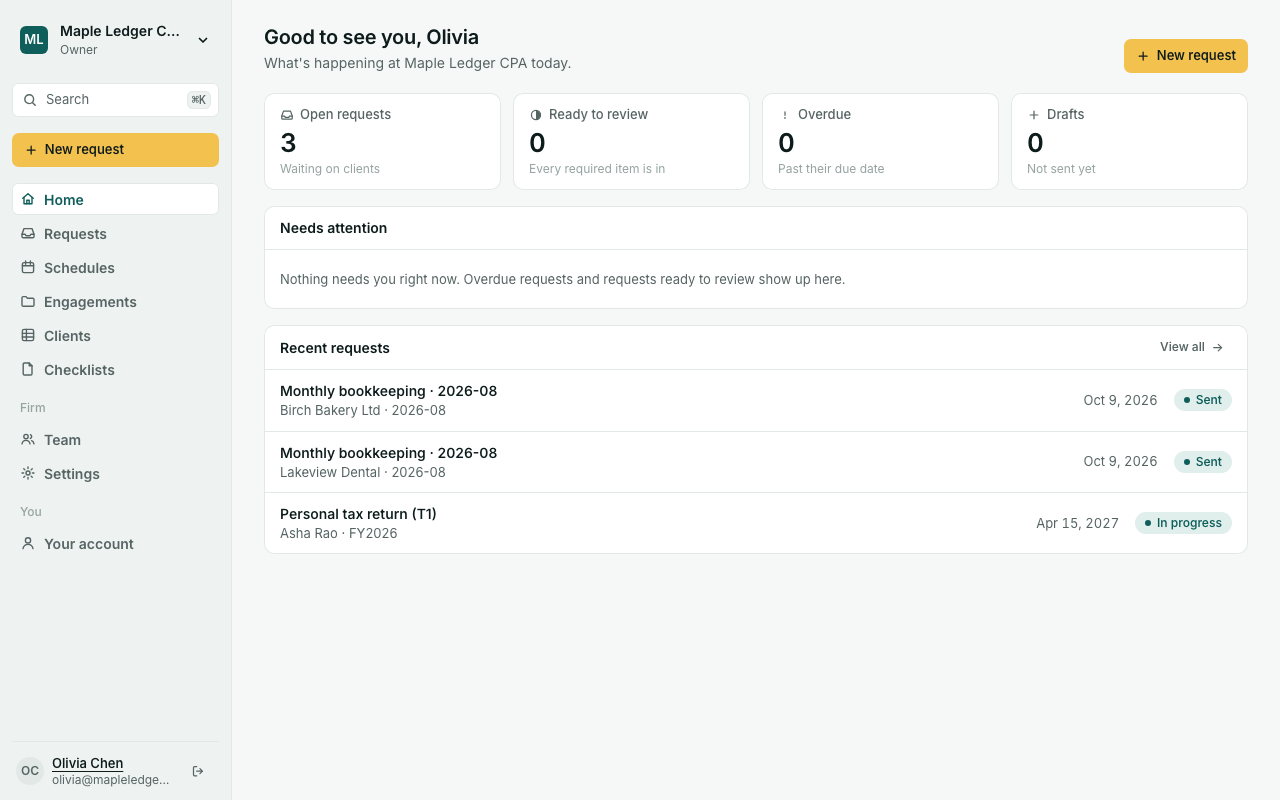
You become the firm's Owner. Your firm is permanently on the site you signed up on: Sealio Canada or Sealio India.
More than one firm
One account can belong to several firms. For example, a bookkeeper might work for two practices. After you sign in, Sealio lists every firm you belong to and your role in each. Each firm's data stays completely separate.
Forgot your password?
On the sign-in page, choose Forgot password? and enter your email. If there's a Sealio account for it, we'll email you a link to choose a new password.
- The link works once and expires after 1 hour.
- Changing your password signs you out on every other device.
- For your privacy, the page shows the same message whether or not the email has an account.
Your account (In place)
You → Your account in the sidebar holds your own settings. They apply to every firm you belong to.
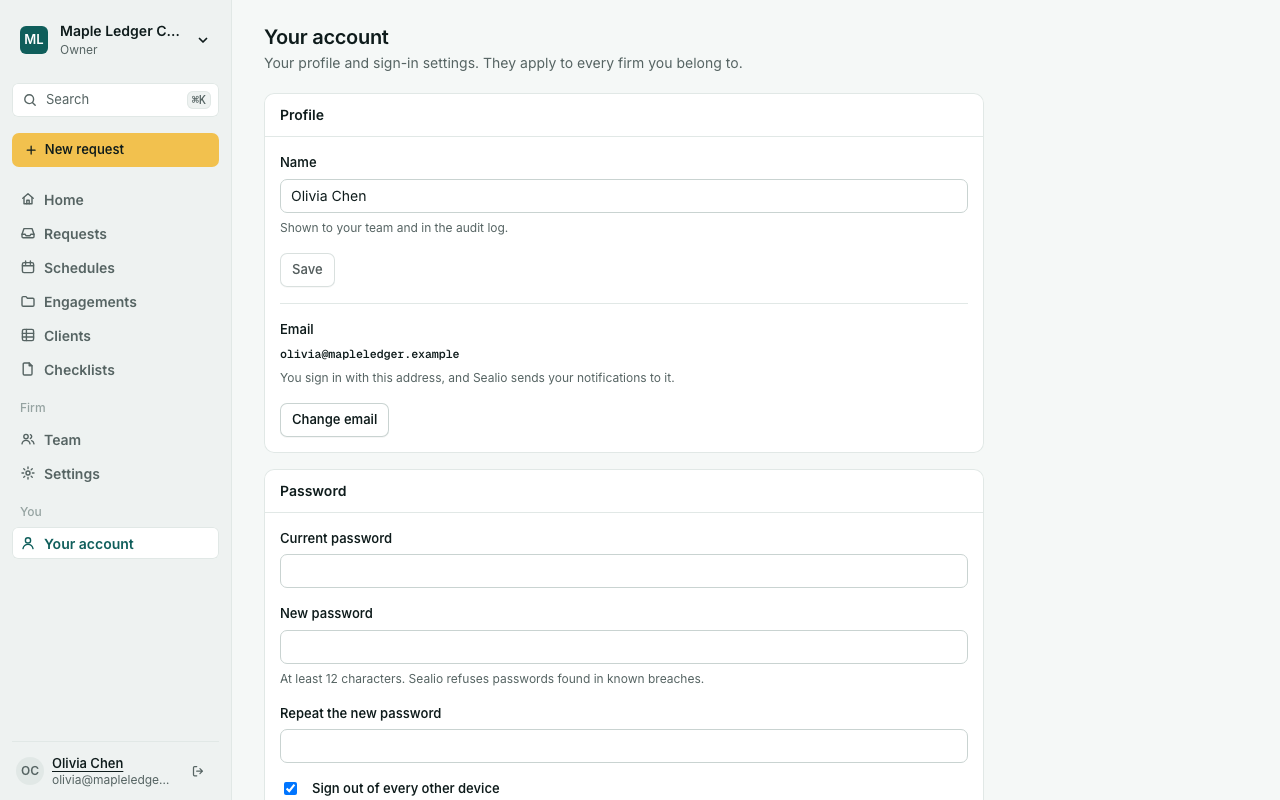
- Profile: change your name.
- Email: choose Change email, enter the new address and your password, then the 6-digit code we send to the new address. Your old address gets a note that it changed.
- Password: enter your current password and a new one (at least 12 characters, not found in known breaches). By default this also signs you out everywhere else. We email you a confirmation.
- Two-factor sign-in: see Security.
- Where you're signed in: every device with its browser, address and last activity. Sign out any one of them, or all others at once.
- Recent sign-in activity: sign-ins, failed attempts and changes to these settings.
If you see a change you didn't make, reset your password from the sign-in page straight away.