 Sealio Docs
Engagements, applications and other cases
Group requests for one piece of work, move it through your stages and keep internal notes.
A case groups the requests, notes and people for one piece of work. Sealio names it after your industry: accounting firms see Engagements, immigration firms Applications, lenders Files, HR teams Onboardings, insurers Claims and law firms Matters. You can rename it. Cases are optional: you can always send a request on its own.
Create one (In place)
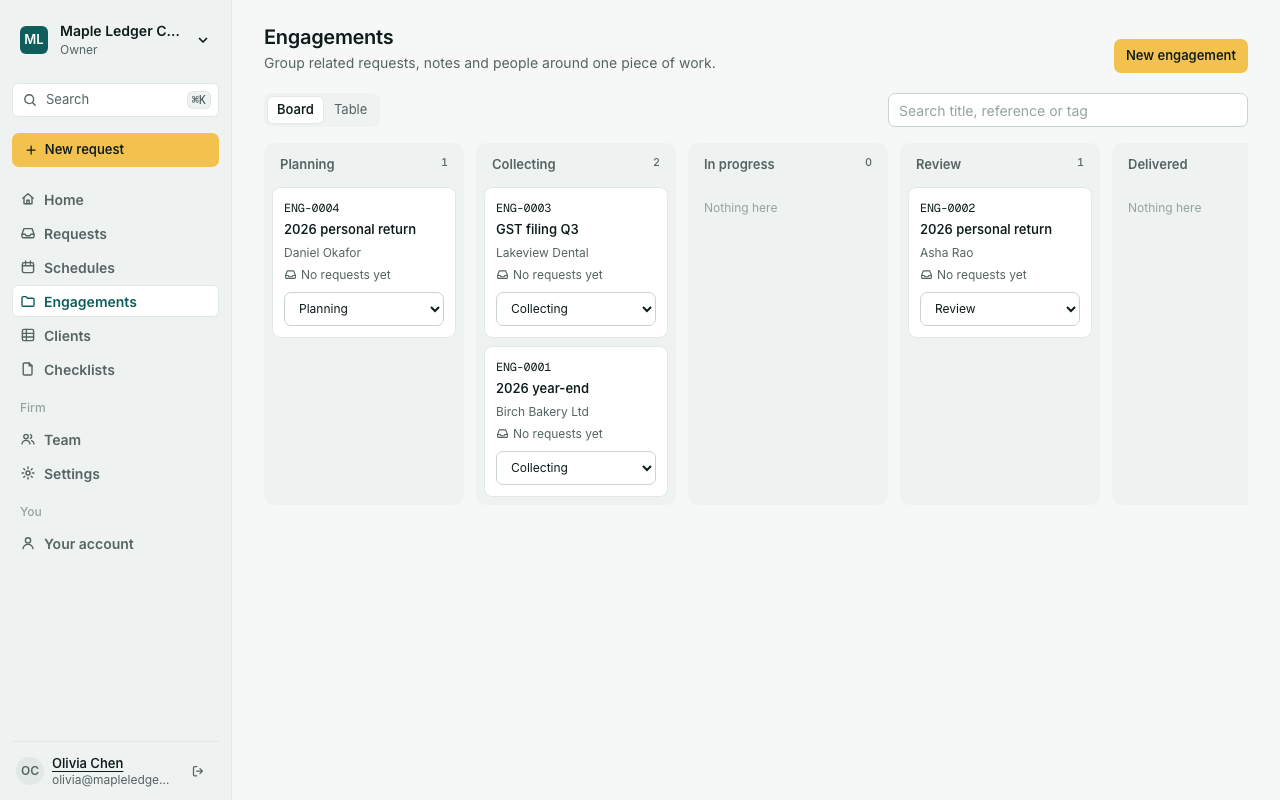
Open your cases from the sidebar and click New engagement (or your own name). Give it a title, choose one or more clients, and optionally a stage, due date, tags and the people working on it. Each gets a reference number such as ENG-0001.
Work in it (In place)
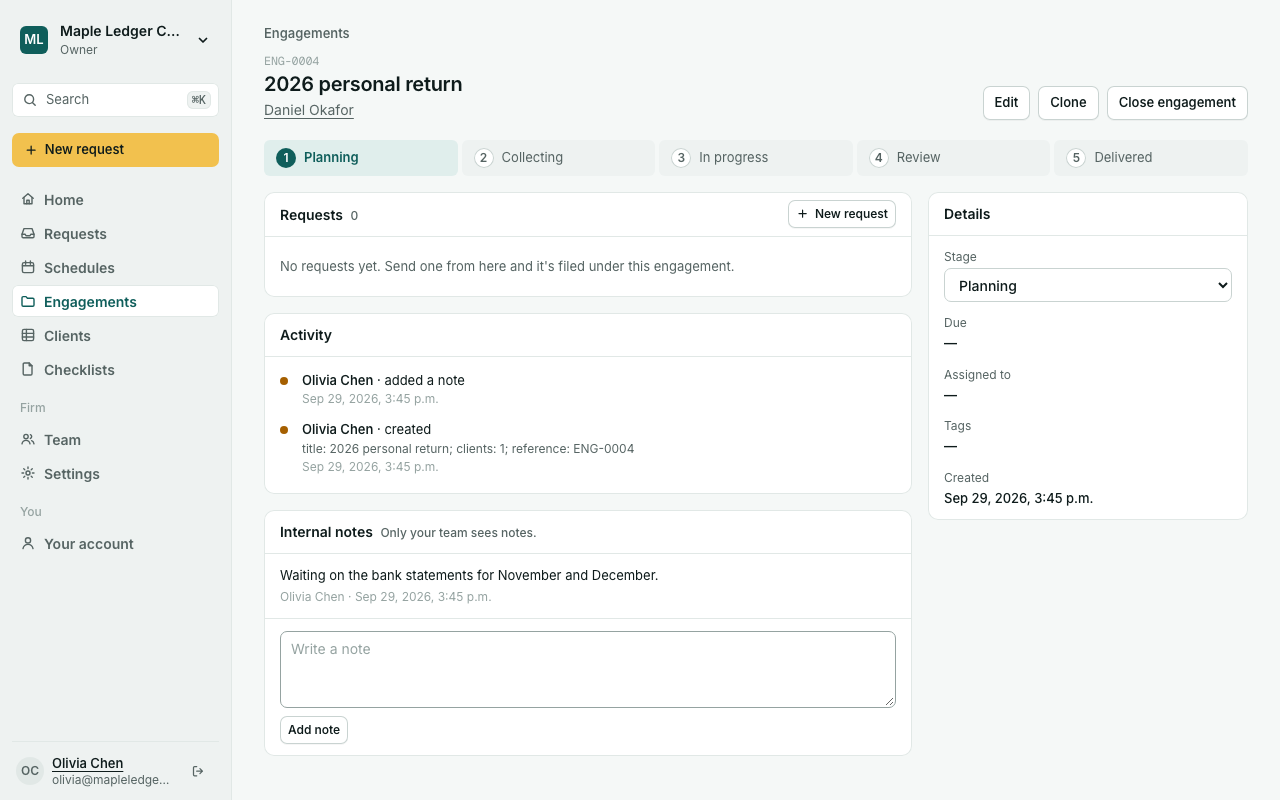
- Requests: click New request on the case to send a request without leaving it: a panel opens with the case's clients, your checklists, a title, due date and message. Choose Send now or Save as draft; to change the checklist's items first, choose Open the full editor. The request is filed under the case. Add an existing request files one you already sent; Remove takes it out again.
- Stages: the steps across the top show where the work is. Change the stage in Details, or from the card on the board.
- Internal notes: only your team sees them. Clients never do.
- Clone: for repeat work such as next year's engagement or a visa renewal. The copy has the same clients and a draft of each request's checklist, ready for new dates.
- Close when the work is done. Closed cases stay searchable in the table view.
The Board shows open cases in columns by stage. The Table lists open, closed or all cases. Search matches the title, reference or a tag.
Your names and stages (In place)
Owners and Admins can change these in Settings, on the tab named after your cases:
- the name, one and many (for example Matter and Matters);
- the reference prefix (existing references keep their numbers);
- the stages: rename, reorder, add or remove them. A stage with cases in it can't be removed until you move them.
Turn cases off if your firm doesn't use them. They disappear from the sidebar, and nothing is deleted.
Planned: saved filters, custom fields on cases, reusing still-valid documents when you clone, and drag-and-drop on the board.