 Sealio Docs
Reviewing documents
Accept files or send them back with a reason, until the request is complete.
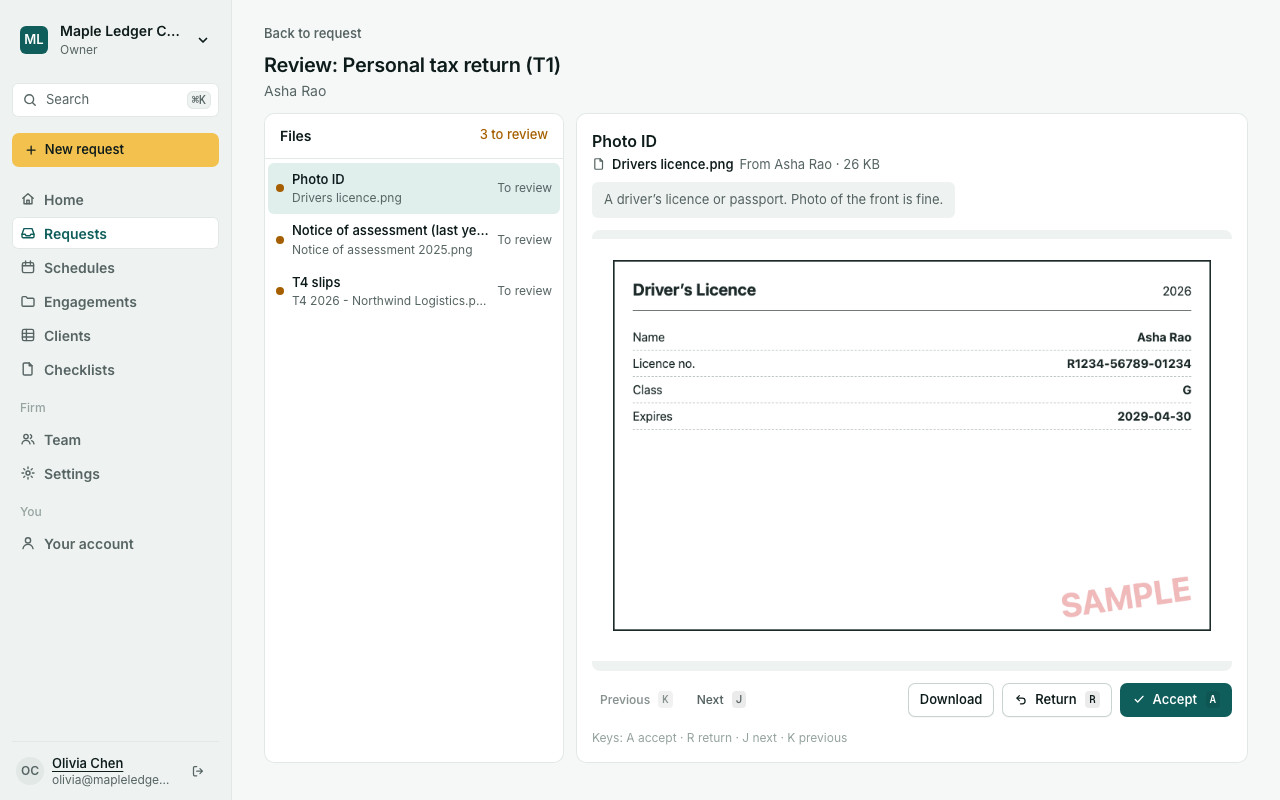
When a client uploads files, open the request and choose Review files. The button shows how many files are waiting.
The review screen
- The left side lists every file in checklist order, with its state: To review, Accepted, Returned or Scanning.
- The right side shows the checklist item, your instructions for it, and a preview of PDFs and photos. For other files, choose Download.
- Accept (key A) when the file is right.
- Return (key R) when the client needs to send a new copy. Pick a reason such as Pages are missing or write your own; the client sees it.
- Next (J) and Previous (K) move between files. After each decision Sealio jumps to the next file still to review.
- Changed your mind? Undo decision.
Only files that passed the virus check can be reviewed. Every preview and download is recorded in the audit trail.
What your client sees
- Returned files are marked Needs changes with your reason. A couple of minutes after you return files, the client gets one email listing all of them, with a link to upload new copies.
- Accepted files are marked Accepted and can no longer be removed.
When the request is complete
Once every required item has an accepted file, and nothing else is waiting for a decision, the request is Complete. Your client gets an email saying everything was received, and their upload page shows that nothing more is needed.
If you later return a file or add a required item, the request reopens.
Planned: previews for Word and Excel files.
Name accepted files your way (In place)
In Settings → Review, Owners and Admins can set how accepted files are named when your team downloads them, for example {client}_{item}_{period} gives Asha Rao_T4 slips_2025.pdf. The file your client sent isn't changed; only the download name is.
Download everything (In place)
Download all (ZIP) on a request packs every file that isn't returned into one ZIP, with a folder per checklist section. Sealio prepares it in the background (usually a few seconds); the download is available for an hour.