 Sealio Docs
Requests
Send a checklist to clients, set a due date, and track it until everything's in.
A request is one checklist sent to one or more clients: "2026 personal tax return" for Asha, or "Study permit" for two joint applicants. It is the unit Sealio tracks, from the moment you send it until every document is accepted.
Create a request
- Choose New request in the sidebar, or on a client's page (that client is already selected).
- Pick the clients. Joint applicants or co-borrowers can share one request (up to 10). Someone new? New client adds them without leaving the page.
- Pick a checklist, or Blank checklist to add items yourself. New checklist starts one from the library right there. Choose Create draft.
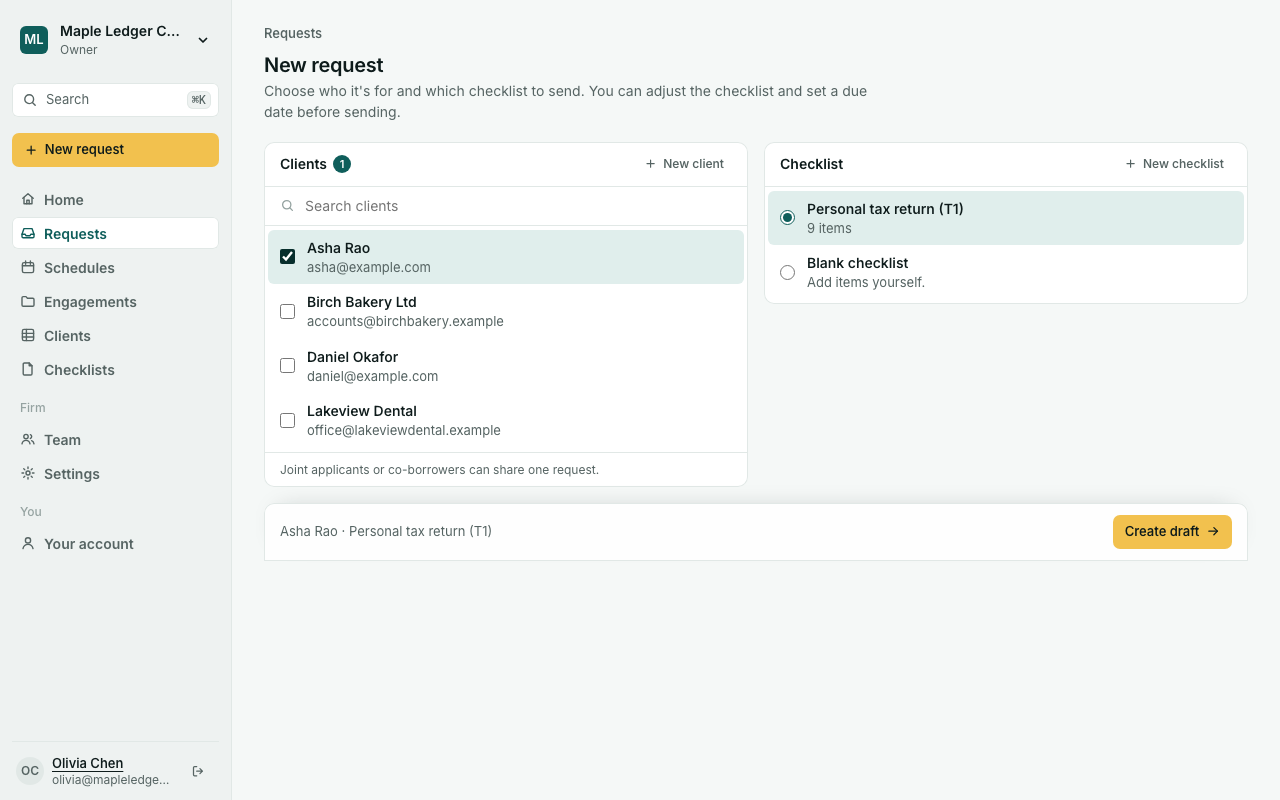
Sealio copies the checklist into the request. Changes you make here only affect this request, and later edits to the checklist never change it.
Before you send
The request stays a draft until you send it, and saves itself as you work. You can:
- rename it and write a message to the client (shown at the top of their upload page);
- set a due date and a period, such as
2026-Q3orFY2026, for recurring work; - add, remove or change items, exactly as in a checklist;
- add or remove clients.
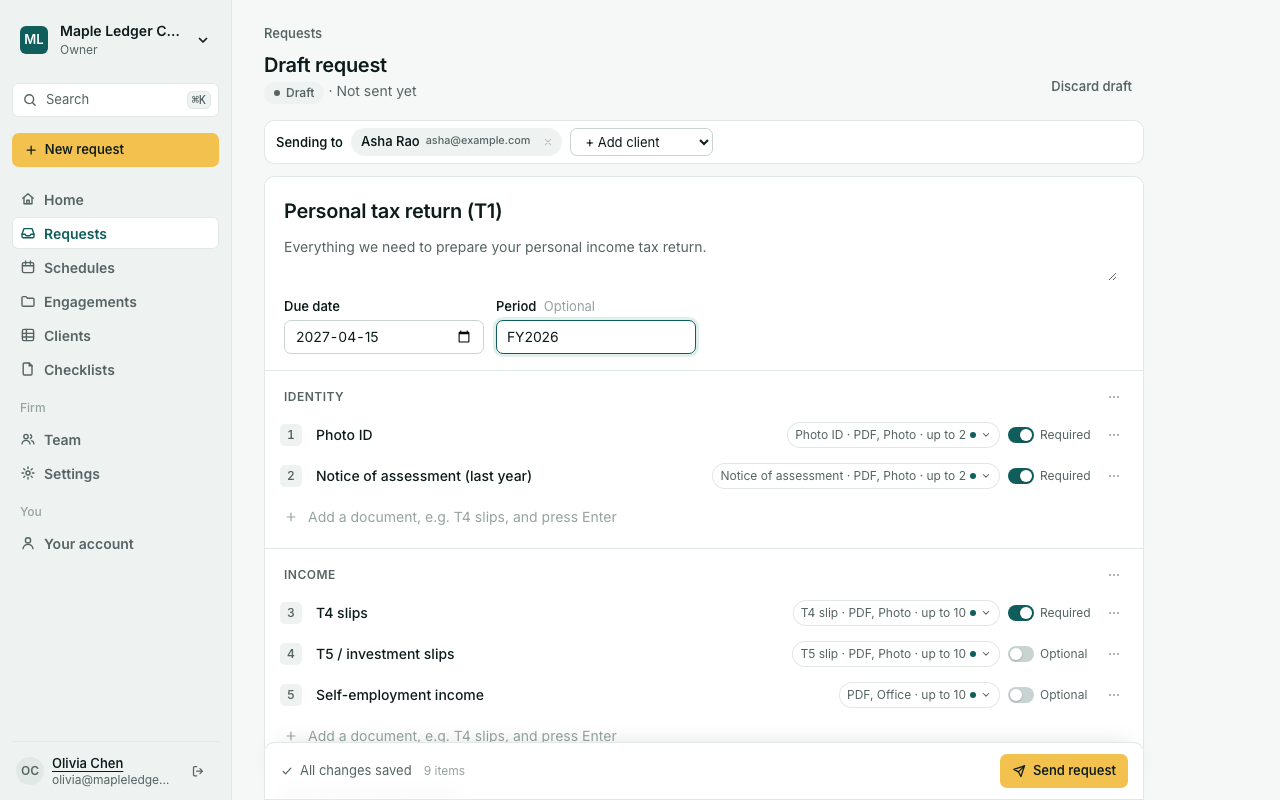
Send request is at the bottom of the page. Sealio won't send if a client has no email address or the due date has passed; it tells you what to fix.
After you send
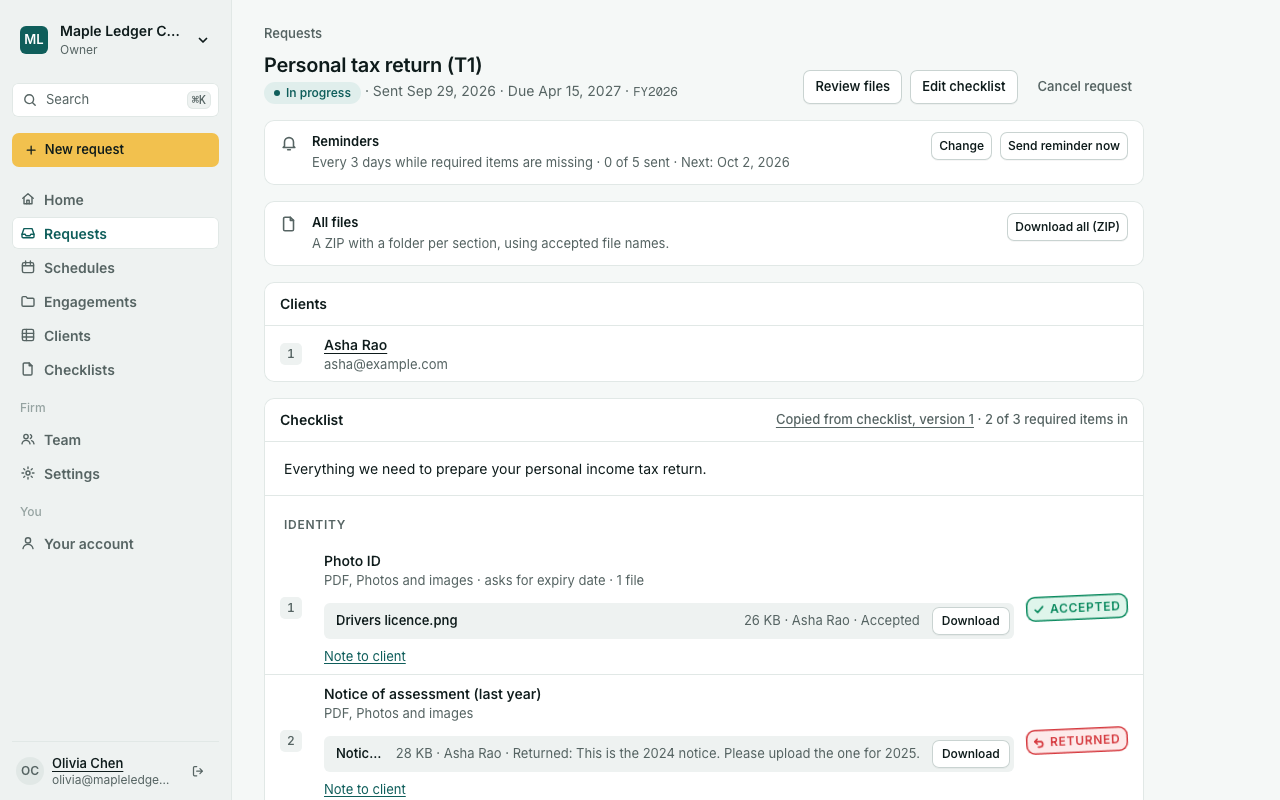
- The request is Sent, and each client gets an email with their own secure link (see How your clients upload).
- Need something else? Edit checklist lets you add items or change their details. Your clients get an email listing what's new. Items that already have files can't be removed.
- The status moves to In progress with the first upload and Under review when every required item is in. Each item shows its files; Download opens one.
- Requests past their due date show Overdue in the list.
- Cancel request stops it; it moves to Closed. Discard draft does the same for drafts.
- A client's page lists all their requests and statuses.
Owners, Admins and Case managers can create and send requests. Reviewers and Viewers can see them.
Next step: review the files. The request is Complete once everything required is accepted.
Planned: reminders.