 Sealio Docs
Team and roles
Invite your colleagues and choose what each person can do.
Everyone at your firm gets their own Sealio account, and each person has one role in your firm.
Roles
| Role | Can do |
|---|---|
| Owner | Everything, including billing. The person who created the firm. |
| Admin | Everything except billing: team, settings, integrations, clients and requests. |
| Case manager | Clients, checklists and requests; reviews documents. |
| Reviewer | Reviews (accepts or returns) and downloads documents. |
| Viewer | Reads and downloads documents. |
Only Owners and Admins can invite people, and nobody can give someone more access than they have themselves.
Invite someone
- Open Team in your firm's workspace.
- Enter their email address, choose a role, and select Send invitation.
- They get an email from Sealio with a link. The link works once and expires after 7 days.
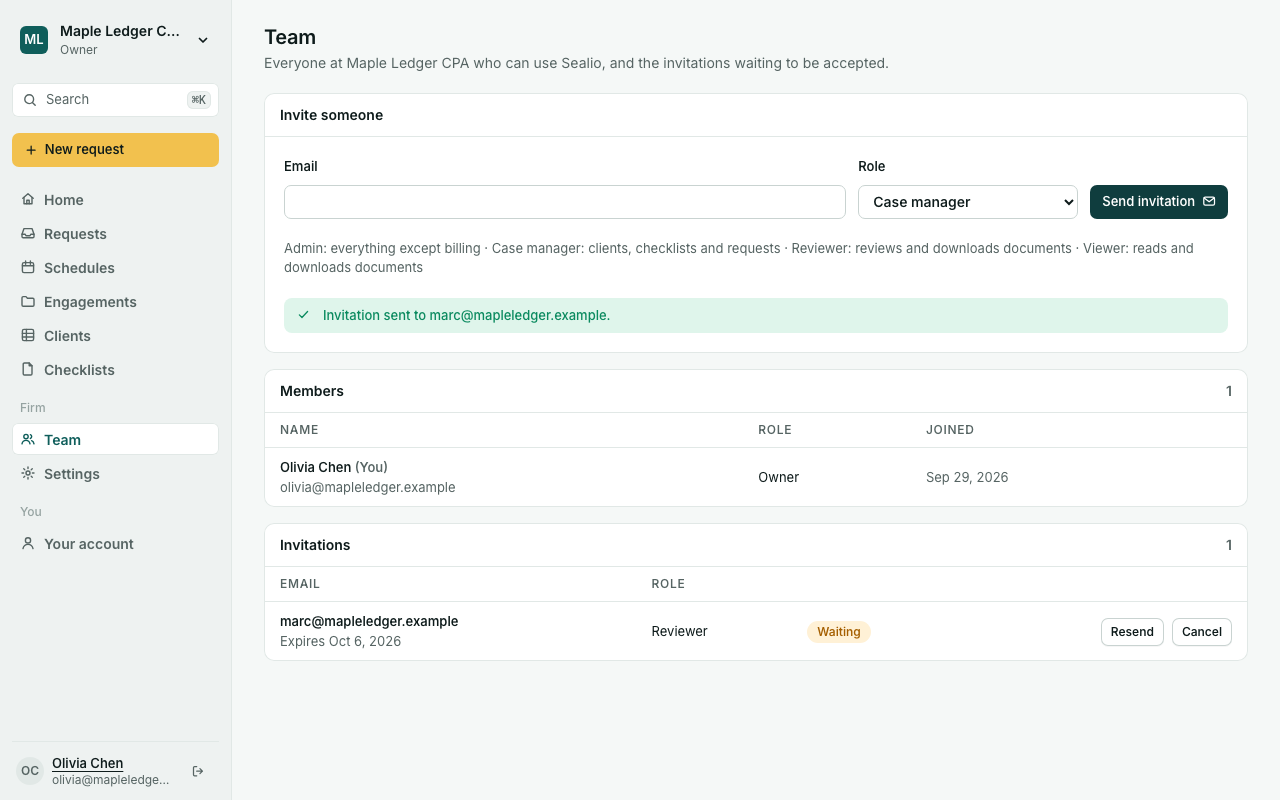
The invitation list shows who hasn't joined yet. Resend sends a fresh link (the old one stops working); Cancel withdraws the invitation.
Accept an invitation
Open the link in the email. If you don't have a Sealio account yet, create one with the same email address the invitation was sent to. We'll send you a 6-digit code to confirm it. Then choose Accept invitation to open the firm's workspace.
If you already use Sealio for another firm, sign in and accept: both firms appear in your firm list, and their data stays completely separate.
Planned: changing a member's role, removing members, and teams inside a firm.
Change a role or remove someone (In place)
Owners and Admins can change anyone's role from the Team page, except their own and the Owner's. Remove takes a person out of your firm: they lose access right away, and their past work stays in the audit log. Their Sealio account and any other firms they belong to aren't affected.