 Sealio Docs
How your clients upload
What your client sees when you send a request, from the email to the upload page.
When you send a request, each client gets an email from Sealio on your firm's behalf with a personal link.
Opening the link
- The client opens Upload your documents from the email. The page carries your firm's name.
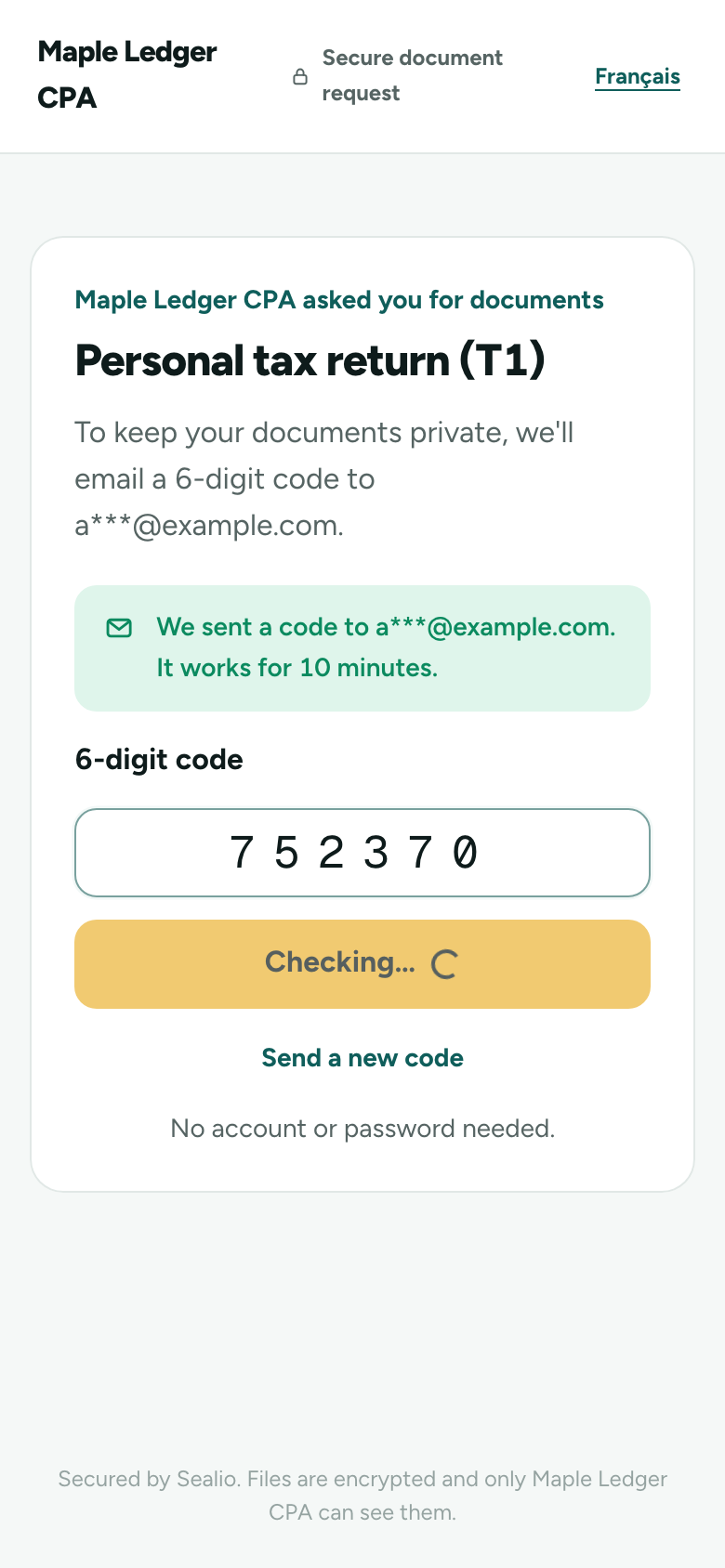
- The first time, they choose Email me a code. Sealio sends a 6-digit code to the address you sent the request to.
- They enter the code and see their checklist. No account or password is needed.
Links are personal and work for 30 days. Codes work once, for 10 minutes. After a successful code, the client stays signed in on that device for 12 hours, for any of their requests from your firm.
Uploading
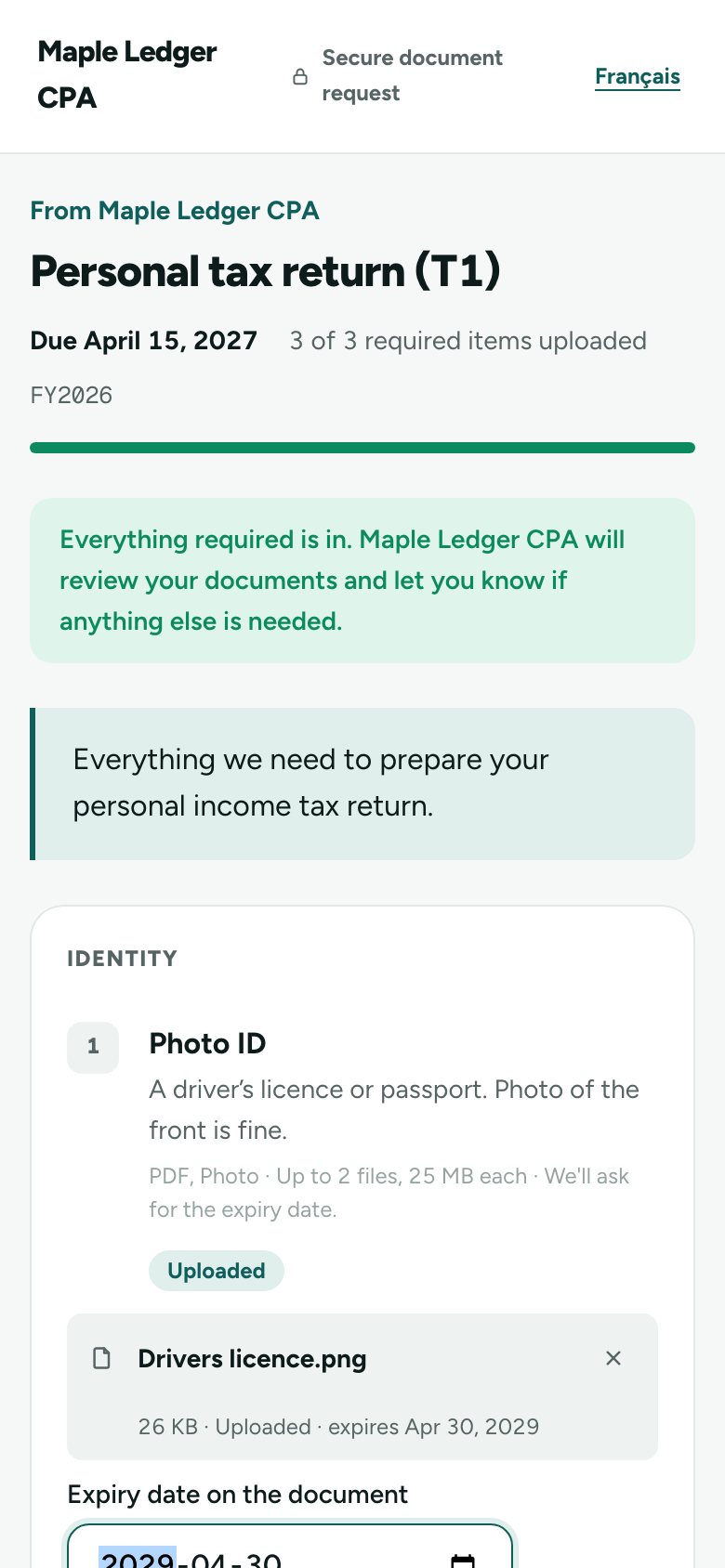
- Each item shows your instructions, the accepted file types and how many files it takes.
- Clients choose Upload files (on phones this includes taking a photo) or drop files onto an item. Several files can go at once.
- Sealio checks each file against the item: type, size and the maximum number of files. It says what's wrong if a file doesn't fit.
- Until you review a file, the client can remove it and upload another.
- The page shows how many required items are in. When all of them are, it tells the client you'll take it from there.
Files go straight to encrypted storage. They never pass through anyone's inbox.
Virus scanning
Every upload is scanned for malware before your team can open it. While the check runs, the client sees Checking for viruses… and your request page shows scanning; both update by themselves, usually within a minute.
- Clean: the file is available to your team.
- Failed the check: the file is deleted straight away and can never be downloaded. The client is asked to upload another copy.
- Couldn't be checked (for example a password-protected file): the file is held back and can't be downloaded. The client is asked for another copy.
What you see
- The request moves to In progress with the first upload and to Under review when every required item is in.
- The request page lists each item's files with who uploaded them. Download opens the file. Every download is recorded in the audit trail.
If a client has two requests from you, one code covers both on the same device. Joint clients each get their own link and code; each sees only the file names they uploaded, but everyone's uploads count toward the checklist.
After uploads, review the files: accepted files are locked, returned files come back to the client with your reason.
French for clients in Canada (In place)
On Sealio Canada, clients whose preferred language is French get their emails (the request, codes, reminders, returned files and the thank-you) and the upload page in French. The upload page also has an English / Français switch in the top corner, which the client's browser remembers.
What you write yourself, such as the request title, your message, item names, instructions and return reasons, is shown as you wrote it. If your client reads French, write those in French too.
Notes on an item (In place)
Clients can leave a note on any item (for example "the March statement comes next week"), and your team can reply from the request page. Both see the whole conversation for that item. Notes are part of the request's history in the audit log.